This page explains how to install the Covalent firmware onto the Node Duo and connect using the Covalent application for AndroidTM.
Download the pre-compiled firmware binaries (.zip) based on size of your ESP32-C5 flash:
These are merged, ready-to-flash images that contain:
Each .bin file is intended for a separate ESP32-C5 board.
Install Covalent from the Google Play Store:
This app connects to both ESP32-C5 boards over Bluetooth and provides scanning, capture, and control functions.
To flash the firmware, you must install Espressif ESP-IDF on your computer.
Choose ONE of the following options:
Official instructions:
https://docs.espressif.com/projects/esp-idf/en/latest/esp32c5/get-started/
If you use VSCode, you can install the ESP-IDF extension:
https://docs.espressif.com/projects/esp-idf/en/latest/esp32c5/get-started/vscode-setup.html
Either option gives you access to the idf.py and esptool.py flashing tools.
Move the DIP selector switch to the "1" position.
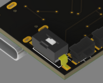
Run the following command from your terminal or VSCode ESP-IDF terminal:
esptool.py --chip esp32c5 write_flash 0x0 ESP32C5-1.bin
Move the DIP selector switch to the blank position.
esptool.py --chip esp32c5 write_flash 0x0 ESP32C5-2.bin
After flashing completes, unplug and reconnect the USB cable.
On your mobile device:
When connected, you can begin:
.22000 file formatYour setup is now complete.
Android and Google Play are trademarks of Google LLC.